Custom conversion tracking is essential for understanding how your e-commerce efforts drive sales, sign-ups, or other key actions. Shopify and WooCommerce offer different approaches to tracking, each with its strengths and challenges. Here's what you need to know:
- Shopify: Simplifies tracking with built-in tools like native app integrations, Google Tag Manager (GTM), and server-side Conversion APIs. It’s user-friendly but limits customization unless you upgrade to Shopify Plus.
- WooCommerce: Offers flexibility through plugins and manual setups like webhooks. However, it requires more technical knowledge to implement and maintain tracking.
Key Differences:
- Shopify is faster to set up and includes built-in compliance tools.
- WooCommerce allows more control but depends on third-party plugins and manual configurations.
- Server-side tracking is available on both platforms but is simpler to implement on Shopify.
Quick Comparison Table:
| Feature | Shopify | WooCommerce |
|---|---|---|
| Setup Time | Fast, one-click integrations | Slower, requires plugins |
| Customization | Limited | Extensive |
| Server-Side Tracking | Built-in | Requires plugins |
| Monthly Cost | Starts at $39 | Free core + hosting + plugins |
Both platforms can achieve accurate conversion tracking with the right tools and setup. Choose Shopify for simplicity or WooCommerce for control.
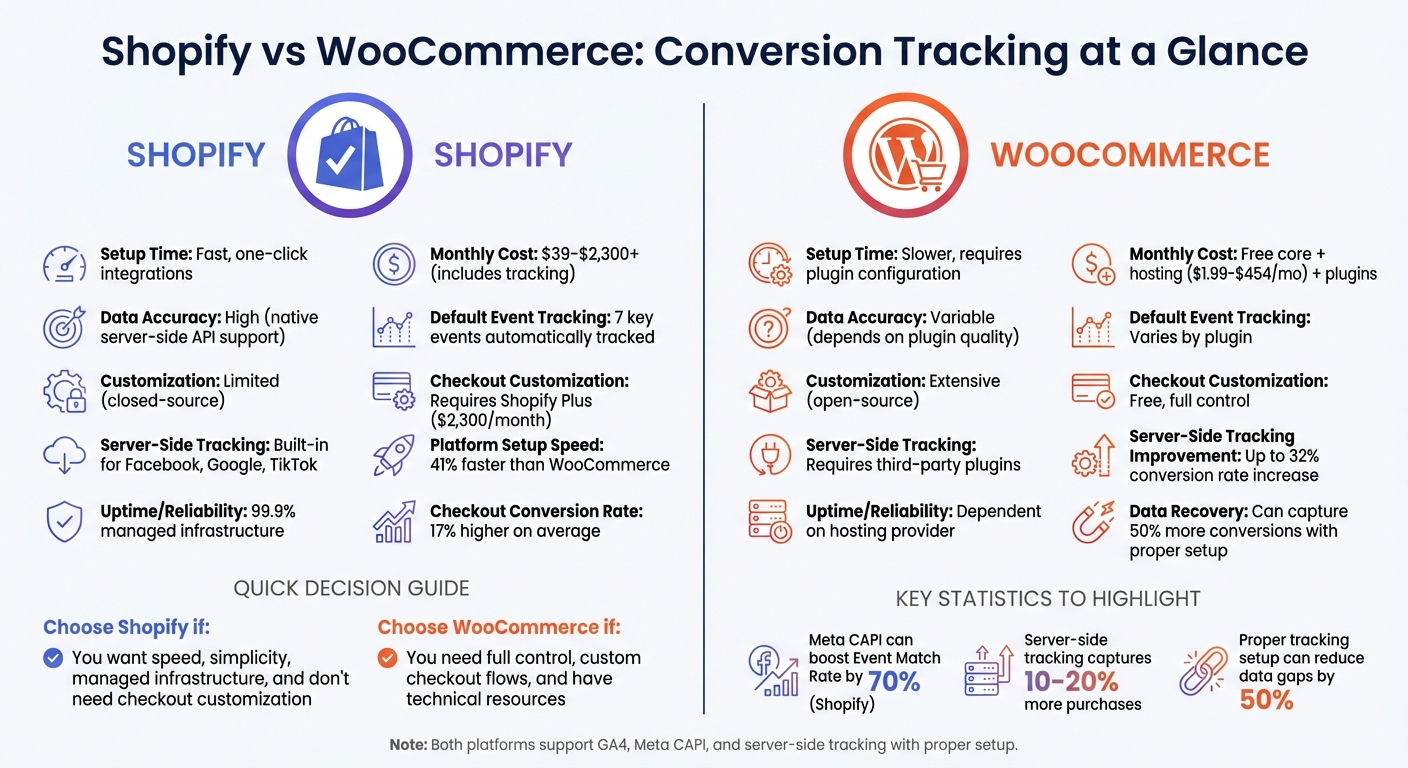
Shopify vs WooCommerce Conversion Tracking Comparison
Set Up WooCommerce, Thrive Cart & Shopify Conversion Tracking in Minutes using a free template!
Setting Up Custom Conversion Tracking in Shopify
Shopify offers three main methods for tracking conversions: native app integrations, custom pixels via Google Tag Manager (GTM), and server-side Conversion APIs. The native Google & YouTube app simplifies the process by automatically tracking seven key events: page_view, search, view_item, add_to_cart, begin_checkout, add_payment_info, and purchase. This setup is ideal for integrating with GA4 and Google Ads, offering a smoother experience compared to the manual setup required in platforms like WooCommerce.
For broader tracking across platforms such as Meta, TikTok, and Google, Google Tag Manager provides more flexibility. You can create a custom pixel in Shopify Admin under Settings > Pixels and embed your GTM container code. Using the analytics.subscribe method, Shopify events can be captured and pushed to GTM's dataLayer. For instance, to track a product view, you might use the following code:
analytics.subscribe("product_viewed", (event) => {
  window.dataLayer.push({
    event: "view_item",
    /* additional data */
  });
});
Server-side tracking through Conversion APIs creates a direct connection between Shopify's server and the ad platform's server, bypassing browser limitations. Shopify offers built-in integrations for platforms like Facebook, Instagram, and TikTok, making this setup more straightforward. This method can capture 10–20% more purchases compared to browser-based tracking. To avoid double-counting events when using both client-side and server-side tracking, assign a unique event_id to each user action. This ensures platforms can merge events properly and prioritize the server-side version.
Tools for Shopify Conversion Tracking
- Google & YouTube App: This is the go-to tool for integrating GA4 and Google Ads. After installing the app from the Shopify App Store, connect your Google account and map Shopify events to conversion actions. Enabling Enhanced Conversions in the app allows hashed first-party data to be sent, improving measurement accuracy.
- Google Tag Manager (GTM): GTM reads data from your site's data layer and distributes it to various platforms. It’s particularly helpful for tracking events not covered by Shopify’s native integration, such as cart removals, cart views, or refunds. For developers seeking more control, gtag.js offers another option for firing events directly to GA4.
- Server-Side Tools: Tools like the Meta Conversion API recover underreported purchases by sending data directly from Shopify’s server to the ad platform’s server. While more reliable than browser-based methods, this approach can involve higher maintenance and potential cloud hosting costs.
Pro Tip: GA4 only retains event-level data for two months by default. To keep data available for long-term analysis, extend retention to 14 months in the admin settings. Also, use UTM parameters in all marketing links to track traffic sources accurately, even with cookie restrictions.
Shopify Tracking Limitations and Solutions
Shopify’s secure sandbox environment for checkout can limit tracking capabilities, such as automatic outbound link tracking. Additionally, some events - like cart removals, cart views, and refunds - aren’t captured by the native GA4 integration. These require custom code or GTM-based solutions.
Another issue arises when GA4 runs in Shopify’s sandbox. The URLs displayed may include sandbox-specific details instead of actual page paths. To resolve this, disable automatic page tracking in GA4 and implement a manual page_viewed event using event.context.window.location.href. This ensures accurate URL reporting.
If you’re transitioning from older tracking setups, remove legacy tags before installing the Google & YouTube app. Duplicate tags can inflate conversion counts and distort reporting. Use tools like the Google Tag Assistant Chrome extension and the GA4 "Realtime overview" report to confirm that tags are firing correctly.
For server-side tracking, routinely compare event counts with Shopify Admin reports. This helps identify issues like signature mismatches, rate limits, or missing data fields before they affect attribution accuracy. Ideally, GA4 data should deviate by less than 10% from actual sales.
"A conversion API, also known as a server-side API, lets a business send marketing data from its servers directly to the servers of an advertising platform... This direct path avoids any detours or additional pickups (i.e., browser limitations)." - Shopify Staff
Setting Up Custom Conversion Tracking in WooCommerce
Unlike Shopify's built-in integrations, WooCommerce depends on third-party tools and manual setups to deliver similar tracking capabilities. Its open-source framework allows for extensive customization but requires hands-on configuration. Conversion tracking can be achieved using plugins, manual script placement, or custom webhooks that interact directly with your server.
For a simplified setup, plugins like MonsterInsights and Site Kit automate GA4 integration, removing the need for manual coding. MonsterInsights, for instance, includes an eCommerce add-on that tracks events like add_to_cart and purchase automatically. For social media tracking, tools like the Facebook for WooCommerce plugin or PixelYourSite implement Meta Pixel and Conversions API (CAPI), capturing key events such as ViewContent, InitiateCheckout, and Purchase to optimize ad performance.
Server-side tracking offers a way to bypass browser restrictions, such as ad blockers and privacy settings, by using webhooks. In WooCommerce, you can configure webhooks by navigating to WooCommerce > Settings > Advanced > Webhooks and adding a webhook for "order.created". This setup sends purchase data directly from your server to ad platforms, helping ensure more accurate tracking. In fact, effective server-side tracking has been shown to improve conversion rates by up to 32% in ad campaigns.
For more advanced needs, you can create "synthetic events" - custom conversions tailored to your business logic, such as distinguishing high-value purchases to better align with specific goals. One store owner discovered that standard tracking missed nearly 50% of actual data, recording just 182 converted sessions when there were actually 233 real orders.
Identity resolution also plays a crucial role in accurate tracking. This process links user identifiers - like email addresses, phone numbers, cart tokens, and cookie IDs - across sessions and tools into a single profile. Adding a 1-minute delay to server-side events can help synchronize browser cookies with server data during identity resolution.
This groundwork sets the stage for exploring specific tools and addressing challenges unique to WooCommerce.
Tools for WooCommerce Conversion Tracking
Several tools simplify the tracking process for WooCommerce stores. Google Tag Manager (GTM) is one of the most flexible options, allowing you to manage tags and set up custom event tracking without directly modifying your site's code. GTM lets you track non-standard events like "Add to Wishlist" or "Product Video Engagement", which many plugins might overlook. It acts as a central hub, reading data from your site and distributing it to various platforms.
For stores with complex tracking needs, Customer Data Platforms (CDPs) like CustomerLabs offer advanced options. These tools support synthetic event creation, identity resolution, and server-side tracking. CDPs can consolidate data from multiple sources, providing enriched conversion insights for ad platforms.
Specialized plugins are also available for specific tracking goals. AutomateWoo, for example, tracks conversions tied to automated workflows like abandoned cart emails or SMS campaigns. To count as a conversion, the customer must open the email or click a link within a 14-day window. FooConvert, on the other hand, focuses on micro-conversions, tracking engagement with website widgets like popups and flyouts.
Conversios is another popular option, offering a free version for basic GA4 tracking and Microsoft Ads, while its Pro version supports advanced features like Google Ads purchase conversions, Meta CAPI, and server-side tracking. With over 60,000 stores using it, Conversios is praised for its efficiency in setting up first-party tracking, though some users have reported challenges with setup and conflicts with other plugins.
| Event Name | Tracking Method | Data Source | Ad Platform Mapping |
|---|---|---|---|
| ViewContent | Client-Side (JS) | Browser | ViewContent |
| AddToCart | Client-Side (JS) | Browser | AddToCart |
| InitiateCheckout | Client-Side (JS) | Browser | InitiateCheckout |
| AddPaymentInfo | Server-Side | API/Webhook | AddPaymentInfo |
| Purchase | Server-Side | API/Webhook | Purchase |
When using GA4 plugins, enable Enhanced eCommerce or eCommerce Reporting to capture detailed product data like SKU, category, and price. Before launching major campaigns, use tools like Meta Events Manager's "Test Events" or GA4 Real-Time reports to ensure custom scripts and hooks are functioning properly. For maximum control, you can manually insert JavaScript tracking snippets into the <head> section of your site or on the checkout success page.
WooCommerce Tracking Challenges and Solutions
While WooCommerce is highly customizable, it does come with its own set of tracking challenges. Its open architecture can create fragmented funnels, making it harder to follow the complete customer journey. Unlike Shopify's unified checkout, WooCommerce allows customers to move between cart, checkout, and product pages in less predictable ways, often requiring custom configurations for accurate tracking. Additionally, relying on third-party plugins can sometimes lead to compatibility issues, especially when multiple tracking tools are used together.
Setting up server-side tracking or PHP hooks requires advanced technical knowledge. For instance, implementing server-side tracking with webhooks involves understanding APIs and identity resolution techniques. Some users have reported a 28% uplift in conversions after successfully configuring server-side tracking to ensure all actions were attributed to ad campaigns.
WooCommerce provides various hooks that trigger scripts at specific moments, such as after user registration or when an item is added to the cart. For example, the woocommerce_thankyou hook can fire a purchase event only after the order confirmation page loads, ensuring accurate tracking. However, using these hooks effectively requires a solid understanding of PHP.
To avoid false positives caused by internal staff actions, add --no-tracking to admin email addresses in tools like AutomateWoo. Additionally, when setting up webhooks for server-side tracking, make sure they include key fields like value, currency, transaction ID, and order ID. This ensures ad platforms receive the data needed for accurate ROAS calculations.
Modern tracking tools for WooCommerce now emphasize compliance with GDPR and CCPA by integrating with Consent Management Platforms (CMPs) to respect user privacy preferences. It's also important to ensure your tracking plugins are compatible with High-Performance Order Storage (HPOS) to maintain site performance as your store grows. Using GA4's "Funnel Exploration" tool can help you map out steps like "View Product > Add to Cart > Begin Checkout > Purchase" and pinpoint where users drop off. These strategies help set the foundation for effective conversion tracking in WooCommerce.
sbb-itb-5174ba0
Shopify vs WooCommerce: Conversion Tracking Comparison
When it comes to tracking setups, Shopify and WooCommerce offer distinct approaches that cater to different priorities. Shopify focuses on speed and simplicity, while WooCommerce leans into flexibility and control. Shopify provides a streamlined, low-code environment where integrations like GA4 and Facebook Conversions API can be installed with just one click using official apps. This efficiency means Shopify's platform setup is 41% faster on average compared to WooCommerce. On the other hand, WooCommerce requires users to manually select and configure plugins. While this adds complexity, it also allows for greater customization due to its open-source framework. These differences highlight how each platform’s architecture influences tracking performance.
Server-side tracking is a key factor in data accuracy. Shopify integrates Conversion APIs directly into its native sales channels, enabling seamless server-to-server connections. WooCommerce can achieve similar results, but only through specialized plugins like AnyTrack or Conversion Tracking Pro. Shopify’s managed infrastructure ensures 99.9% uptime, while WooCommerce’s reliability depends heavily on the quality of your hosting provider and plugins. Additionally, Shopify boasts a 17% higher checkout conversion rate on average compared to WooCommerce, though this reflects overall platform performance rather than tracking capabilities alone.
When it comes to flexibility, WooCommerce stands out. Its open-source nature allows users to track custom events, such as wishlist additions or other engagement actions, without restrictions. As one user noted, "The reason we chose WooCommerce is that it worked nicely with WordPress and it gave us the most flexibility. We didn't want to have another cookie-cutter Shopify store". In contrast, Shopify’s closed system limits customization. For example, customizing the checkout process requires an upgrade to Shopify Plus, which costs $2,300/month. WooCommerce, however, offers full checkout customization without additional platform fees, though you might need a developer or some budget for implementation.
Cost structures also differ significantly. Shopify includes tracking features in its monthly subscriptions, which start at $39, plus a 0.25% revenue fee on sales exceeding $800,000 for Plus members. WooCommerce’s core platform is free, but costs can add up based on your needs. Hosting fees range from $1.99 to $454 per month, domain registration costs around $17 per year, and tracking plugins like AutomateWoo cost approximately $13.25 per month. WooCommerce’s expenses vary depending on individual requirements and technical resources. The table below provides a clear comparison of these key differences.
Feature Comparison Table
| Feature | Shopify | WooCommerce |
|---|---|---|
| Setup Time | Fast; one-click integrations | Slower; requires plugin configuration |
| Data Accuracy | High; native server-side API support | Variable; depends on plugin quality |
| Customization | Limited; closed-source | Extensive; open-source |
| Server-Side Tracking | Built-in for Facebook, Google, TikTok | Requires third-party plugins |
| Uptime/Reliability | 99.9% managed infrastructure | Dependent on hosting provider |
| Compliance | Built-in PCI, SOC, GDPR tools | User-managed |
| Monthly Cost | $39–$2,300+ (includes tracking) | Free core + hosting + plugins |
| Default Event Tracking | 7 key events automatically tracked | Varies by plugin |
| Checkout Customization | Requires Shopify Plus ($2,300/month) | Free; full control |
Tools and Best Practices for Custom Conversion Tracking
Recommended Tracking Tools
To effectively track ecommerce conversions, Google Analytics 4 (GA4) is a go-to tool for both Shopify and WooCommerce users. Shopify simplifies this process with a native one-click integration available through its official app. WooCommerce, on the other hand, relies on plugins like Conversios or CustomerLabs for automated tracking. If you're looking to improve event match rates, the Meta Conversions API (CAPI) is a game-changer. Meta reports that implementing CAPI can boost Event Match Rate (EMR) by up to 70% for Shopify stores. One Shopify merchant even saw a 30% improvement in purchase tracking accuracy after switching from browser-only pixels to CAPI.
For those juggling multiple ad platforms, Google Tag Manager Server-Side (GTM SST) offers a streamlined solution that ensures accurate tracking without compromising site performance. Tools like CustomerLabs 1PD Ops provide no-code options for advanced customization. For example, you can create synthetic events to identify high-value customers, such as filtering purchases over $1,000, which helps train ad algorithms to target these segments more effectively. WooCommerce users often favor Conversios for automated GA4, Google Ads, and Meta CAPI tracking, eliminating the need for custom coding.
If you're exploring additional tracking tools, the Marketing Analytics Tools Directory is a helpful resource for finding advanced solutions beyond the standard integrations.
With these tools in place, the next step is to follow best practices to ensure your tracking efforts are as accurate as possible.
Implementation Best Practices
Once you've chosen the right tools, implementing them effectively is key to optimizing your conversion tracking. Server-side tracking should be a priority since browser-based pixels are often blocked by ad blockers or iOS privacy features, leading to data gaps. As Rohan Kumar from CustomerLabs aptly stated:
"In today's privacy-first world, relying solely on browser-based tracking for your Shopify store is like driving the car blindfolded".
To improve attribution accuracy, enable Enhanced Conversions by sending hashed first-party data (like email addresses or phone numbers) to Google Ads, especially when click identifiers are unavailable. For stores catering to European audiences, Google Consent Mode V2 is essential. It lets you respect user consent choices while still leveraging data modeling. Always verify event tracking accuracy using tools like GA4 DebugView, Meta Test Events, or Microsoft UET Tag Helper to ensure key parameters - like value, currency, and transaction ID - are being transmitted correctly. Ideally, the difference between GA4 data and actual sales should not exceed 10%.
Custom dimensions, such as product categories, variants, or Average Order Value (AOV), can help you build precise audience segments for retargeting campaigns. If you're combining browser-based and server-side tracking, make sure to deduplicate events to avoid double-counting conversions. For custom server-side conversions, adding a one-minute delay in your workflow can help capture browser events first before enriching them with server-side data.
These best practices, paired with the right tools, can significantly enhance your conversion tracking efforts and provide greater insights into your ecommerce performance.
Conclusion
Deciding between Shopify and WooCommerce for custom conversion tracking ultimately comes down to what your business needs most. Shopify is all about simplicity, offering one-click setups for GA4 and Facebook Conversion API (CAPI), which allow you to track purchases, add-to-carts, and checkouts in just minutes. However, if you want to customize the checkout process - an important step for tracking unique conversions - you’ll need to upgrade to Shopify Plus, which costs $2,300 per month. On the other hand, WooCommerce gives you complete freedom as an open-source platform, allowing for full control over checkout tracking. The trade-off? You’ll need to manually manage plugins, updates, and security, which could impact tracking accuracy.
Both platforms support server-side tracking via Conversion APIs. Shopify simplifies this through built-in partner integrations, while WooCommerce often leans on third-party plugins like AnyTrack or Pixel Manager Pro. Shopify’s native GA4 integration tracks seven key events automatically but skips others, like "remove_from_cart", unless you add custom code. Meanwhile, WooCommerce plugins often offer a broader range of event tracking straight out of the box. These differences highlight the unique strengths of each platform.
As Mitchell Callahan, Founder of Saucal, put it:
"By empowering developers to create truly bespoke online stores, WooCommerce outshines Shopify's closed, more restrictive approach".
Whichever platform you choose, some steps are non-negotiable: implementing server-side tracking, enabling Enhanced Conversions, and routinely verifying your data for accuracy. For businesses looking to explore additional tracking tools, the Marketing Analytics Tools Directory is a valuable resource, offering advanced analytics solutions tailored specifically for ecommerce.
FAQs
How does server-side tracking enhance conversion accuracy for Shopify and WooCommerce stores?
Server-side tracking moves the task of capturing important conversion events - like page views or order confirmations - from the customer’s browser to a secure backend system. This method bypasses the need for client-side cookies or tracking pixels, which are increasingly blocked by privacy updates (like iOS 14+ ATT, Safari ITP, and ad blockers). By leveraging tools such as Shopify webhooks or WooCommerce REST hooks, businesses can send reliable identifiers - like email addresses, order IDs, or product SKUs - directly to analytics platforms. This ensures the data is matched more accurately with advertising networks like Google and Meta.
This backend solution can help recover 30–40% of lost conversions, providing more precise conversion tracking and improving return on ad spend (ROAS) calculations. For Shopify and WooCommerce merchants, this means a closer alignment between store orders and advertising performance data, paving the way for smarter marketing strategies and better-optimized ad budgets. If you’re considering server-side tracking tools, check out the Marketing Analytics Tools Directory for a curated list of platforms designed to simplify setup and enhance attribution accuracy.
What makes Shopify better than WooCommerce for conversion tracking?
Shopify provides an easy-to-use, built-in system for tracking conversions, making the setup process quicker and more straightforward compared to WooCommerce. With features like automatic syncing to Google Merchant Center, Google Ads conversion tracking, and a dedicated Conversion API, Shopify enables you to monitor sales data without needing third-party tools. It also supports offline conversion tracking, letting you link in-store or phone sales to online campaigns with minimal effort.
In contrast, WooCommerce requires you to install additional plugins or extensions, such as AutomateWoo or AnyTrack, to enable conversion tracking. This often means extra setup steps, potential compatibility issues, and additional costs. For U.S.-based businesses seeking a more streamlined and dependable solution, Shopify’s built-in tools clearly offer a more efficient option.
What are the best tools to improve conversion tracking on WooCommerce?
To track and improve conversions on WooCommerce, several plugins and tools can help you monitor performance and fine-tune your strategies. Conversion Tracking Pro is a standout option, integrating directly with WooCommerce to track key events like purchases and add-to-cart actions in detail. Another popular choice, AutomateWoo, allows you to automate workflows based on user behaviors, such as completing a purchase, making tracking more efficient.
For businesses looking to manage real-time attribution across platforms like Google, Facebook, and TikTok, AnyTrack offers seamless integration with WooCommerce, making multi-platform tracking a breeze. If coding isn’t your thing, the Pixel Manager for WooCommerce plugin is an excellent solution, supporting GA4, Meta Pixel, TikTok Pixel, and other ad tags without requiring technical skills. For those seeking a simpler option, Jetpack Stats provides lightweight tracking for product views and sales right from your WordPress dashboard. Meanwhile, Analytify connects with Google Analytics 4 to deliver e-commerce-specific insights tailored to WooCommerce stores.
Whether you need basic event tracking or advanced funnel attribution, these tools can help you make smarter, data-driven decisions to grow your store in the U.S. For more options, check out the Marketing Analytics Tools Directory to compare and find the best solution for your business needs.