OAuth 2.0 simplifies secure access to Salesforce data using temporary tokens instead of login credentials. This approach is essential for integrating third-party marketing tools like email platforms and analytics dashboards while maintaining security. Here's what you need to know:
- Token-Based Access: Tokens grant specific permissions for a set time, reducing security risks compared to sharing login credentials.
- OAuth Scopes: Control access precisely with permissions like
email_readoremail_send. - Marketing Cloud Requirement: OAuth tokens are mandatory for all REST and SOAP API requests, with tenant-specific endpoints enhancing security.
- Setup Essentials: Administrative access is required to create Installed Packages and API integrations.
- OAuth Flows: Choose the right flow based on your integration needs - Client Credentials for server-to-server, Authorization Code Flow for user-specific actions.
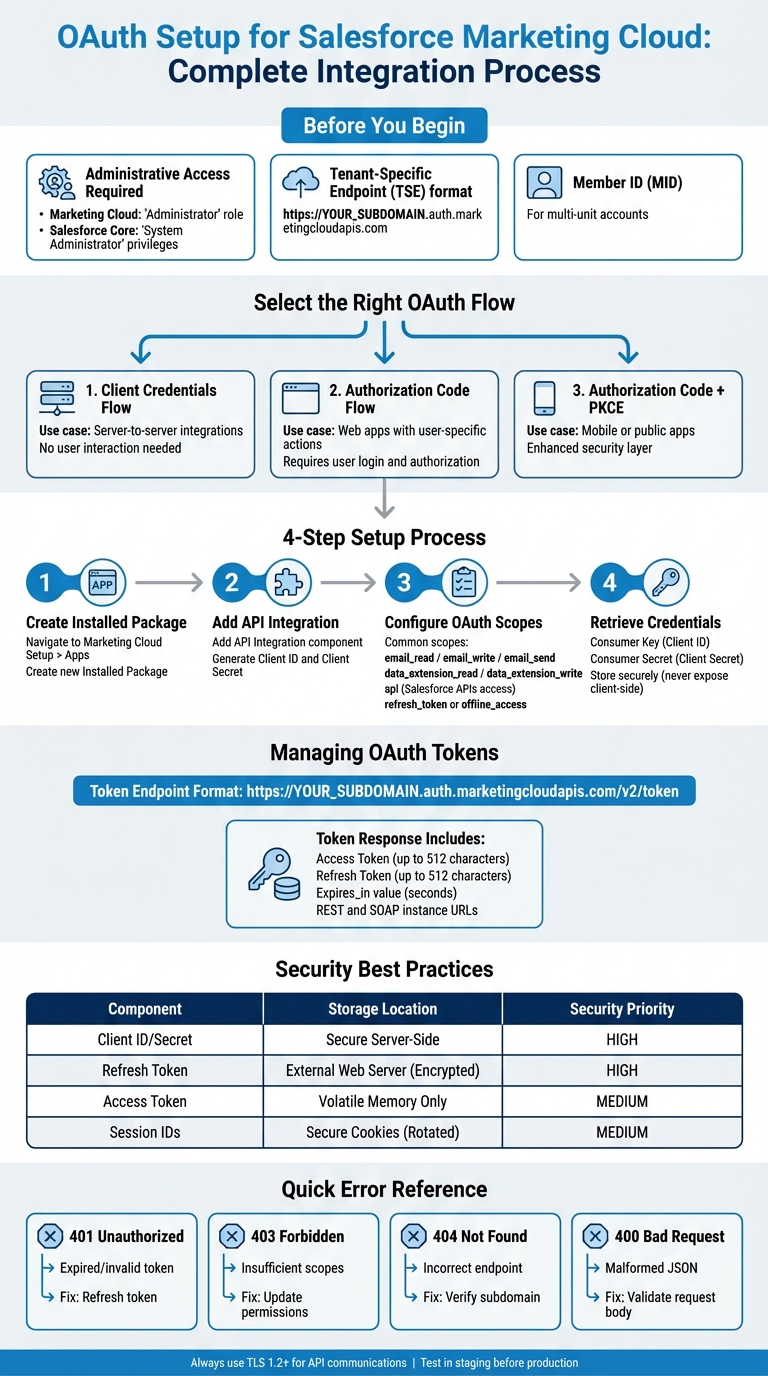
OAuth Setup Process for Salesforce Marketing Cloud Integration
Prerequisites for OAuth Setup in Salesforce
Salesforce Account Requirements
To set up OAuth in Salesforce, administrative access is a must. For Marketing Cloud Engagement, this means having the "Administrator" role to create installed packages. On the Salesforce core side, you'll need "System Administrator" privileges or specific permission sets like "Tableau Next Admin" to manage External Client Apps.
The setup process begins with creating an Installed Package in the Marketing Cloud Setup menu under Apps. Within this package, add an API Integration component to generate the Client ID and Secret. These credentials are essential for authenticating your marketing tools and applications.
Marketing Cloud relies on tenant-specific endpoints (TSEs), which include a unique subdomain for your tenant. Once you've created the installed package, you'll need to retrieve this subdomain (e.g., https://YOUR_SUBDOMAIN.auth.marketingcloudapis.com). This subdomain ensures all authentication and API requests are directed to your secure environment. For multi-unit accounts, you'll also need the Member ID (MID) for each business unit you plan to access.
After meeting these account requirements, the next step is selecting the appropriate OAuth flow for your integration.
Choosing the Right OAuth Flow
For server-to-server integrations that don’t involve user interaction, the Client Credentials Flow is the go-to option. This flow allows your application to authenticate directly using its Client ID and Secret, making it straightforward and efficient.
If your web application needs to act on behalf of specific users, the Authorization Code Flow (also known as Web Server Flow) is the standard choice. This flow requires users to log in and authorize access, which is useful when user-specific permissions are needed or when tracking user actions is important. For mobile or public apps, use the Authorization Code Flow with PKCE (Proof Key for Code Exchange) for an added layer of security.
Once you've chosen the OAuth flow, it's time to configure your API integration to meet Marketing Cloud's requirements.
Marketing Cloud API Specifications
After completing the account setup and selecting the OAuth flow, you’ll need to configure your API integration. Start by creating an Installed Package that supports modern OAuth flows. Once authenticated, the system will provide an access token, REST instance URL, and SOAP instance URL.
Deciding between the REST API and SOAP API depends on your specific needs. The REST API is ideal for managing assets, journeys, and campaigns. However, if you need to interact with Data Extension objects, the SOAP API is required. Many integrations use both APIs - REST for campaign management and SOAP for handling data operations.
OAuth scopes determine what your integration can access. Common scopes include email_read, email_write, email_send, and data_extension_read/write. Assign only the scopes your application absolutely needs. For example, if your application only reads data, use data_extension_read instead of granting broader permissions. For integrations with the Data Cloud API, you’ll also need a 2048-bit RSA key to sign digital certificates for the JWT bearer flow.
Creating a Connected App in Salesforce
Setting Up the Connected App
Log in to Salesforce, navigate to Setup, type App Manager in the Quick Find box, and select it. Once there, click New Connected App to start the setup process.
Begin by entering a unique Connected App Name, verify the auto-generated API Name, and provide a valid Contact Email. Scroll down to the API (Enable OAuth Settings) section, and check the Enable OAuth Settings box to unlock additional configuration options.
After enabling OAuth, allow 2–10 minutes for the settings to propagate before testing your integration. From there, configure the OAuth Callback URL and select the required scopes for your app.
Configuring OAuth Scopes and Callback URL
The Callback URL is where Salesforce redirects users after they successfully authenticate. For local testing, you can use URLs like http://localhost:56420 or https://127.0.0.1:80/. In production environments, always use a secure HTTPS URL. Make sure the URL is not URL-encoded, as Salesforce does not accept encoded strings. This step is critical for ensuring secure API interactions later on.
Next, choose the OAuth scopes that determine what your application can access. Commonly used scopes include:
api: Grants access to Salesforce APIs.refresh_tokenoroffline_access: Allows the app to request new access tokens without requiring the user to re-authenticate.full: Provides full access to all data the user has permission to access.
Only enable the scopes your app genuinely needs to reduce security risks.
For web-based applications, consider enabling the Require Secret for Web Server Flow option. This ensures that the Client Secret is exchanged for an access token, adding an extra layer of security.
Saving and Retrieving App Credentials
Once you've saved your Connected App, return to the App Manager, locate your app, and click View. Then, select Manage Consumer Details to access your Consumer Key (Client ID) and Consumer Secret (Client Secret). Salesforce may require identity verification before displaying these credentials.
Keep your Client ID and Secret private and never expose them on the client side.
Store the Client Secret securely, such as in a password manager or secure vault. In some cases, like with Marketing Cloud Enhanced Packages, you may not be able to view the secret again after the initial setup. To maintain security, use server-side environment variables or secure configuration files instead of embedding credentials in your code. Additionally, consider rotating your OAuth secrets periodically to maintain a strong security posture. These credentials will be essential for managing secure API tokens in future interactions.
Managing OAuth Tokens in Salesforce
Getting Access and Refresh Tokens
To obtain access and refresh tokens, you need to construct the token endpoint by appending v2/token to your Authorization Base URL. For example: https://YOUR_SUBDOMAIN.auth.marketingcloudapis.com/v2/token.
For server-to-server integrations, use the client_credentials flow by sending a POST request with your client_id and client_secret from your Installed Package. For web and public app integrations, follow the authorization_code flow. This involves redirecting users to log in, obtaining an authorization code, and exchanging it for tokens at the /v2/token endpoint. If you need a refresh token, make sure to select the offline_access scope in your Installed Package and include the offline scope in your authorization request.
The token response will include several key elements:
- An
access_token - A
refresh_token - An
expires_invalue (in seconds) - Instance URLs for REST and SOAP endpoints
Keep in mind that both token types can be up to 512 characters long. To ensure uninterrupted API access, you’ll need to implement a refresh mechanism. This is essential for maintaining top analytics tools and their data connections.
Handling Token Expiration and Refresh
Your application must handle token expiration by using the expires_in parameter from the token response. When the access token expires, send a POST request to the tenant-specific token endpoint. In this request, set grant_type to refresh_token and include your refresh_token, client_id, and, for web apps, your client_secret.
It’s also important to include error-handling logic. For instance, if your application encounters a 401 Unauthorized response, it should automatically trigger the refresh flow. If you don’t specify the scope parameter during the refresh process, the new token will inherit the scopes defined in your Installed Package. For integrations that operate across multiple business units, include the account_id (also referred to as Member ID or MID) in your token request.
Secure Token Storage Methods
Once you’ve set up token refresh mechanisms, it’s crucial to store tokens securely to prevent unauthorized access. Treat OAuth tokens with the same level of security as passwords. Never expose your client_secret or tokens in client-side code, mobile apps, or unencrypted documents.
Here are some best practices for token storage:
- Store the refresh token on external web servers in an encrypted format.
- Keep access tokens in volatile memory instead of writing them to disk.
Additionally, use secure session management techniques, such as rotating session IDs and enabling secure cookie flags. Always enforce Transport Layer Security (TLS) for API communications, and ensure access tokens are included only in the authorization header - not as query parameters.
| Component | Storage Location | Security Priority |
|---|---|---|
| Client ID / Secret | Secure Server-Side Environment | High (Never expose to client) |
| Refresh Token | External Web Server (Encrypted) | High (Treat as credential) |
| Access Token | Volatile Memory Only | Medium (Short-lived) |
| Session IDs | Secure Cookies (Rotated) | Medium |
sbb-itb-5174ba0
Making API Calls with OAuth
Adding Access Tokens to API Requests
Once you've got your access token, it needs to be included in every API request to Salesforce Marketing Cloud. Add it to the HTTP Authorization header using the Bearer scheme like this: Authorization: Bearer YOUR_ACCESS_TOKEN. Use the rest_instance_url or soap_instance_url provided during your token request as the base URL - these URLs are specific to your account. Also, make sure all requests use TLS 1.2 or higher to ensure secure communication. This step works alongside the secure storage and automatic refresh processes discussed earlier.
Resolving Common API Errors
Encountering errors is part of working with APIs, and Salesforce Marketing Cloud is no exception. The most common error is 401 Unauthorized, which typically means your access token has either expired or is invalid. When this happens, your application should automatically initiate the token refresh process you've already set up.
Another common issue is the 403 Forbidden error, which usually points to insufficient permissions (scopes) in your OAuth token for the resource you're trying to access.
Here’s a quick breakdown of frequent error codes and how to address them:
| Error Code | Common Cause | Recommended Fix |
|---|---|---|
| 401 Unauthorized | Expired or invalid access token | Refresh the token using your credentials and refresh token |
| 403 Forbidden | Insufficient OAuth scopes | Update the "Installed Package" to include the needed permissions |
| 404 Not Found | Incorrect tenant-specific endpoint | Check the subdomain in your "Installed Package" settings and adjust the Base URI |
| 400 Bad Request | Malformed JSON or missing required fields | Validate your request body against the Marketing Cloud API documentation |
Testing and Debugging API Calls
Once you've resolved common errors, it's time to validate your integration in a safe environment. Always run your API tests in a staging or sandbox environment before pushing anything to production. This ensures you can spot issues without risking live data. For a quick check on whether your OAuth token is functioning, send a simple GET request to a metadata endpoint like /api/v1/metadata/ before diving into more complex operations.
For testing and debugging, Postman is a great tool. It allows you to organize your API requests into collections and even automate token retrieval and refreshing using pre-request scripts.
When debugging, ensure detailed error logs and stack traces are accessible only to authorized personnel. Public-facing error messages should never expose sensitive information like stack traces or debug details. You might also consider using official or community-supported SDKs for languages like C#, Java, Node, PHP, or Ruby. These SDKs often come with built-in tools for debugging and error handling.
A Step-By-Step Guide to Setting Up a Salesforce Connected App for Easy OAuth Integration
Conclusion
Integrating OAuth into Salesforce for marketing API connections requires a strong emphasis on security, careful selection of OAuth flows, and efficient token management. The key lies in configuring the right type of app - whether using a traditional Connected App or the newer External Client Apps - and aligning the OAuth flow with your specific integration needs and business analytics goals. For example, the Authorization Code flow with PKCE is well-suited for user-facing apps, Client Credentials works best for server-to-server automation, and the JWT Bearer Token flow is ideal for certificate-based, secure integrations.
Salesforce's shift in app design highlights the importance of secure integration practices. Since September 2025, the platform has gradually moved away from traditional Connected Apps, favoring External Client Apps to enhance security and simplify management. This change addresses risks such as authorization code interception, further bolstering the platform's security measures.
"Employing a dedicated user for each application enables you to enforce access scoped to each application, and trace or audit requests for each application." – Samuel Rosen, Director of Product Management, Salesforce Identity
These recommendations align with the earlier discussion on token management and API call practices. Key actions include storing client secrets and refresh tokens securely on the server, using tenant-specific endpoints, and limiting OAuth scopes to only what’s necessary.
FAQs
What’s the difference between the Client Credentials Flow and Authorization Code Flow in OAuth for Salesforce?
The Client Credentials Flow and Authorization Code Flow serve distinct purposes when integrating with Salesforce, each tailored to specific needs.
The Client Credentials Flow is perfect for machine-to-machine integrations where no user interaction is involved. In this setup, the application sends its client ID and secret to obtain an access token. Since it doesn’t require user login, a redirect URI, or a refresh token, it’s well-suited for tasks like background data synchronization or analytics processes.
On the other hand, the Authorization Code Flow is designed for user-driven integrations. Here, the process begins with a user logging into Salesforce, which generates an authorization code. This code is then exchanged for an access token and a refresh token. This method requires a registered redirect URI and supports long-lived sessions, making it ideal for scenarios where user-specific data needs to be accessed or user sessions need to persist across API calls.
To put it simply, use the Client Credentials Flow for automated, system-level operations, and the Authorization Code Flow when user consent or permissions are necessary.
How can I securely manage OAuth tokens and client credentials in Salesforce integrations?
When it comes to securely storing OAuth tokens and client credentials in Salesforce, the best options are Named Credentials or a protected custom metadata type. These methods ensure sensitive data is encrypted and allow Salesforce to handle token refreshes automatically. By using these tools, you avoid hard-coding credentials in Apex, which not only minimizes security risks but also makes ongoing maintenance much easier.
What are tenant-specific endpoints in Salesforce Marketing Cloud, and why do they matter?
Tenant-specific endpoints are custom URLs assigned to each Salesforce Marketing Cloud tenant. These URLs play a key role in ensuring that API calls are routed directly to the right tenant's private environment. This setup boosts security, keeps traffic separate, and ensures reliable routing for OAuth-based requests.
By using these endpoints, your applications can securely and efficiently communicate with Salesforce Marketing Cloud, providing smooth data access and integration tailored to your tenant's needs.