Bad event structure can break your revenue data fast. In audits of more than 150 e-commerce stores, 72% had weak or incomplete data layers, and about 70% had at least one critical error tied to revenue tracking.
If I had to boil this guide down to the minimum, it would be this:
- I use one fixed schema for every e-commerce event
- I clear
ecommercefirst so old values do not leak into new events - I send numbers as numbers, not strings like
"$149.97"or"149.97" - I keep order-level fields outside
itemsand product-level fields insideitems - I use GA4 event names like
purchase,add_to_cart, andview_itemexactly as written - I include
transaction_idon purchases to cut double-counting - I make sure
currencyis always present, such asUSD - I check GTM Preview, GA4 DebugView, and then compare GA4 revenue to the order system
Here’s the simple flow: site → data layer → GTM → GA4 → dashboards.
If the push is wrong at the start, every tool after that inherits the same bad data.
A clean setup also means:
itemsuses the same shape across product and purchase eventspriceis the unit price, not the line total- GTM triggers match event names case-for-case
- teams document fields, types, triggers, and owners before site changes go live
As a gut check, I’d compare GA4 revenue against backend order data over 7 days. A healthy setup often lands around 95% to 105% of backend revenue. If it drifts outside 90% to 110%, something is likely off in the tracking.
That’s the core idea of the article: keep the structure fixed, keep the values clean, and test each step before the data hits reporting.
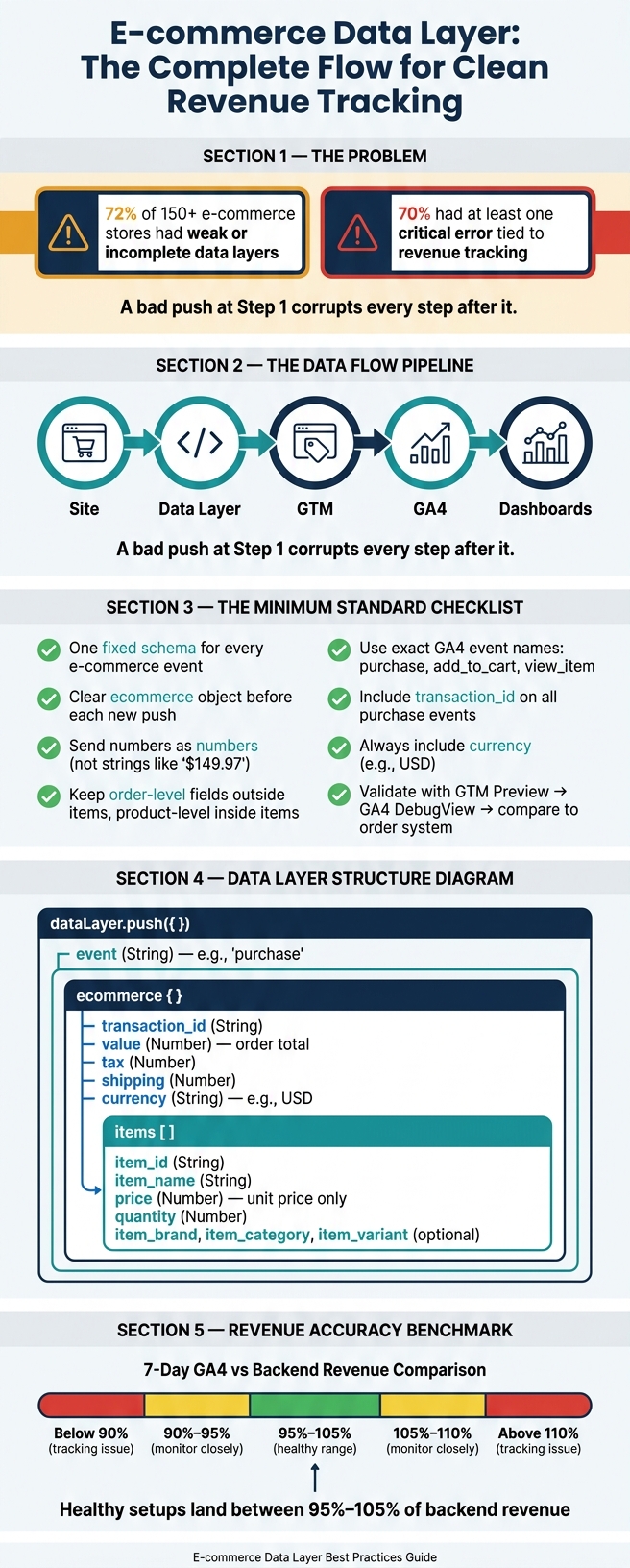
E-commerce Data Layer Flow: From Site Push to Clean Revenue Reporting
Google Tag Manager Ecommerce Tracking: GA4 Event Tag & Google Ads Conversion Setup
sbb-itb-5174ba0
Build the data layer foundation and event schema
Set up one schema before you send any custom e-commerce event. Once that schema is in place, map the fields that GTM and GA4 will read.
Core fields every custom e-commerce event should include
Put e-commerce data inside a top-level ecommerce object so GTM and GA4 can map it the same way every time.
Before you push a new e-commerce event, clear the old ecommerce object. That helps stop stale data from sticking around:
window.dataLayer.push({ ecommerce: null });
Here’s a purchase example:
window.dataLayer.push({
  event: "purchase",
  ecommerce: {
    transaction_id: "ORD-20260629-8821",
    value: 149.97,
    tax: 12.49,
    shipping: 9.99,
    currency: "USD",
    items: [...]
  }
});
That same setup works for any product interaction, not just purchases.
Use numbers, not strings, for value, price, tax, shipping, and discount. And make sure purchase events include transaction_id. GA4 uses it to stop revenue from being counted twice if someone reloads the confirmation page.
Recommended payload format for GTM and GA4
For product-related events, keep the payload predictable and include an items array. That array holds the product-level data for each e-commerce event. GA4 e-commerce events and custom product events should use the same items structure.
| Data Layer Field | Type | Notes |
|---|---|---|
event |
String | Custom event name |
ecommerce.transaction_id |
String | Helps prevent revenue double-counting |
ecommerce.value |
Number | Order total |
ecommerce.currency |
String | Currency code, e.g., USD |
ecommerce.tax |
Number | Order-level tax |
ecommerce.shipping |
Number | Order-level shipping |
ecommerce.items |
Array | Product objects; up to 200 items |
Each object in items should include item_id, item_name, price, and quantity. price and quantity need to be numbers. item_id and item_name should be strings. One small mismatch can cause a mess later, so match item_id values to your product catalog exactly.
Next, separate item-level totals from order-level revenue.
Define item arrays and revenue fields correctly
With the base payload in place, the next step is simple: put each field at the right level.
What belongs in the items array
Use item_id as the main key, and add item_name so product reports are easy to read. If item_id is missing, GA4 product performance reports won’t fill in the way they should.
Inside the items array, add fields like price, quantity, item_brand, item_category, item_variant, coupon, discount, and list-context fields such as item_list_id, item_list_name, and index. Keep item_id and item_name stable over time. If either one changes later, historical product attribution can break in downstream dashboards.
How to separate order revenue from item revenue
Item data is for product reporting. Root data is for transaction reporting. Here’s the split:
| Field Level | Parameters | Purpose |
|---|---|---|
Order-Level (outside items) |
transaction_id, value, tax, shipping, currency, coupon |
Drives order-level revenue reporting |
Item-Level (inside items) |
item_id, item_name, price, quantity, item_brand, item_variant, discount, coupon, item_category |
Describes individual products; used for product performance and attribution |
Placement Context (inside items) |
item_list_id, item_list_name, index |
Tracks where the product appeared and its position in a list |
GA4 supports coupon at both levels, and they work on their own. An event-level coupon applies to the whole order, while an item-level coupon applies to one product.
Common calculation mistakes that break reporting
The mistake that shows up most often is sending value, price, tax, or shipping as a string instead of a number. For example, sending "149.97" instead of 149.97. When that happens, GA4 may misread the value or ignore it.
Another common slip-up is putting the line-item total into price instead of the unit price. price must be the unit price, not the line total.
Duplicate purchase events also cause trouble. This usually happens when someone refreshes the order confirmation page. GA4 deduplicates repeated transactions with the same transaction_id, but you should still block repeat firing with a session-storage flag after the first purchase event.
Once field placement and calculations are correct, lock down naming rules so the schema stays stable.
Set naming rules and governance for long-term accuracy
Event and parameter naming rules that reduce GTM errors
Once the payload structure is locked in, naming rules help keep GTM and GA4 in sync.
GTM triggers match event names exactly, so every event should use lowercase snake_case.
GA4 reserved e-commerce event names - such as view_item, add_to_cart, and purchase - need to stay exactly as written so GA4 can fill its built-in e-commerce reports. For anything outside that set, use a custom_verb_object pattern, like custom_quiz_completed or custom_size_guide_opened. That makes nonstandard events much easier to filter in BigQuery and reporting tools.
Don’t pack context into the event name. For example, use select_promotion with a location parameter instead of homepage_hero_banner_click. The event name should describe the action. The context should live in parameters.
Documentation and change control for the data layer
Treat documentation as the source of truth for developers, analytics, and reporting teams. For each event, document the trigger, parameters, data types, and owner.
| Recommended Pattern | Risky Pattern | Why It Breaks |
|---|---|---|
add_to_cart |
addToCart or Add to Cart |
Mismatches GA4 reserved names and breaks GTM case-sensitive triggers |
select_promotion |
homepage_hero_click |
Context baked into the name; harder to aggregate across placements |
custom_quiz_start |
quiz_v2_final |
Versioning in names creates duplicate events and messy reporting |
snake_case |
kebab-case or spaces |
Some platforms or SQL environments struggle with hyphens or spaces in keys |
When checkout logic changes, tell the analytics team before the code goes live. That heads off last-minute tracking gaps. Use GTM versioning to adjust parameters without redeploying site code.
After a major change, check the first 10–20 orders against the OMS. It’s a simple gut check, but it can save you from bad data spreading through reports. Use this schema before mapping events in GTM.
Activate the data layer in GTM, GA4, and dashboards
Use GTM to read pushes and send GA4 events
Once the schema is set, GTM turns those pushes into tags. Start by creating one Data Layer Variable for ecommerce using Version 2. Then create a Custom Event trigger that matches the event key exactly. GTM is case-sensitive, so purchase and Purchase count as two different events.
For the GA4 tag, use the Google Analytics: GA4 Event tag type. In More Settings → Ecommerce, turn on Send Ecommerce Data and choose Data Layer as the source. That way, GA4 can read the nested items array and transaction fields on its own, instead of forcing you to map every parameter by hand.
Use GTM Preview mode to check that the ecommerce object is filled in when the tag fires. Then open GA4 DebugView and make sure currency, items, and transaction_id are coming through in real time.
Turn structured event data into reliable dashboards
After GA4 is firing cleanly, check the data in reporting. If every event from view_item to purchase uses the same items array structure, GA4 can fill Monetization reports, Checkout journeys, and Product Performance reports without extra setup.
It also helps to compare GA4 revenue with your order system, whether that's Shopify, Stripe, or another OMS, over a 7-day window. A healthy GA4 setup usually lands between 95% and 105% of backend revenue. If it slips outside the 90% to 110% range, there's a good chance something in the data layer is off.
Two common causes show up again and again:
- Monetary values sent as strings instead of numbers
- A missing
currencyparameter
That second issue trips people up more often than you'd think. GA4 has no default currency, so if you leave it out, revenue may not record the way you expect.
Conclusion: The minimum standard for custom e-commerce events
Minimum standard: clear ecommerce, keep one schema across events, separate order-level and item-level fields, use snake_case, and enable Send Ecommerce Data in every GA4 tag.
FAQs
How many custom e-commerce events do I really need?
You don’t need to track every single event. But each one you leave out gives you less visibility into the funnel.
GA4 comes with 13 standard e-commerce events that map the path from product discovery to purchase. It’s smart to use those reserved event names because they auto-fill GA4’s built-in reports.
For actions that don’t fit the standard set, stick to a clear naming pattern like custom_verb_object. Just don’t go overboard and create too many one-off events.
If you need to start with the basics, focus on these four first:
- view_item
- add_to_cart
- begin_checkout
- purchase
What should I do if GA4 revenue doesn't match my backend orders?
Start with a seven-day revenue reconciliation test. GA4 is usually in good shape if it lands between 90% and 110% of your actual records.
If it falls outside that range, check a few common trouble spots:
- Make sure purchase events aren’t firing twice
- Confirm transaction_id is unique
- Send value as a number
- Treat tax and shipping the same way each time
- Clear the data layer with
{ ecommerce: null }before each event - Verify the currency uses a valid ISO 4217 code, such as USD
This is the kind of small setup stuff that can throw off revenue data fast. One duplicate purchase event or a reused transaction_id, and your numbers can drift more than you’d think.
When should I use a custom event instead of a GA4 recommended event?
Use a custom event only when the user action doesn’t line up with one of GA4’s recommended e-commerce events. Start with the built-in options first, such as purchase, add_to_cart, and view_item.
Here’s why that matters: if you rename a standard action - say, using cart_add instead of add_to_cart - GA4 will treat it as a custom event. And once that happens, the event won’t show up in native e-commerce reports. It can also throw off funnel analysis, which makes reporting a lot messier than it needs to be.