If your store shows 100 orders and GA4 shows 70 to 85 purchases, your checkout flow is likely dropping data. I’d check three things first: whether the session breaks on the payment domain, whether PayPal or Stripe steals credit as a referral, and whether the purchase event fires only after the shopper returns to the thank-you page.
Here’s the short version:
- Compare backend orders to GA4 purchases for the same 30-day window
- Watch for
paypal.com,checkout.stripe.com, or direct traffic spikes - Test the return path and confirm the thank-you page loads with the
purchaseevent - Set up cross-domain tracking so GA4 can keep the same session
- Block payment domains as referrals so they don’t replace the original source
- Store UTMs and client data before checkout so redirects don’t wipe them out
- Keep
transaction_idformats consistent so orders and GA4 purchases match
A simple rule I use: if the gap stays above 10%, there’s usually a tracking problem worth fixing. And if your capture rate drops below 70%, the issue is often more than ad blockers or browser privacy.
This article walks through the fix in plain terms: find the gap, test the handoff, clean up attribution, and make sure the sale gets recorded.
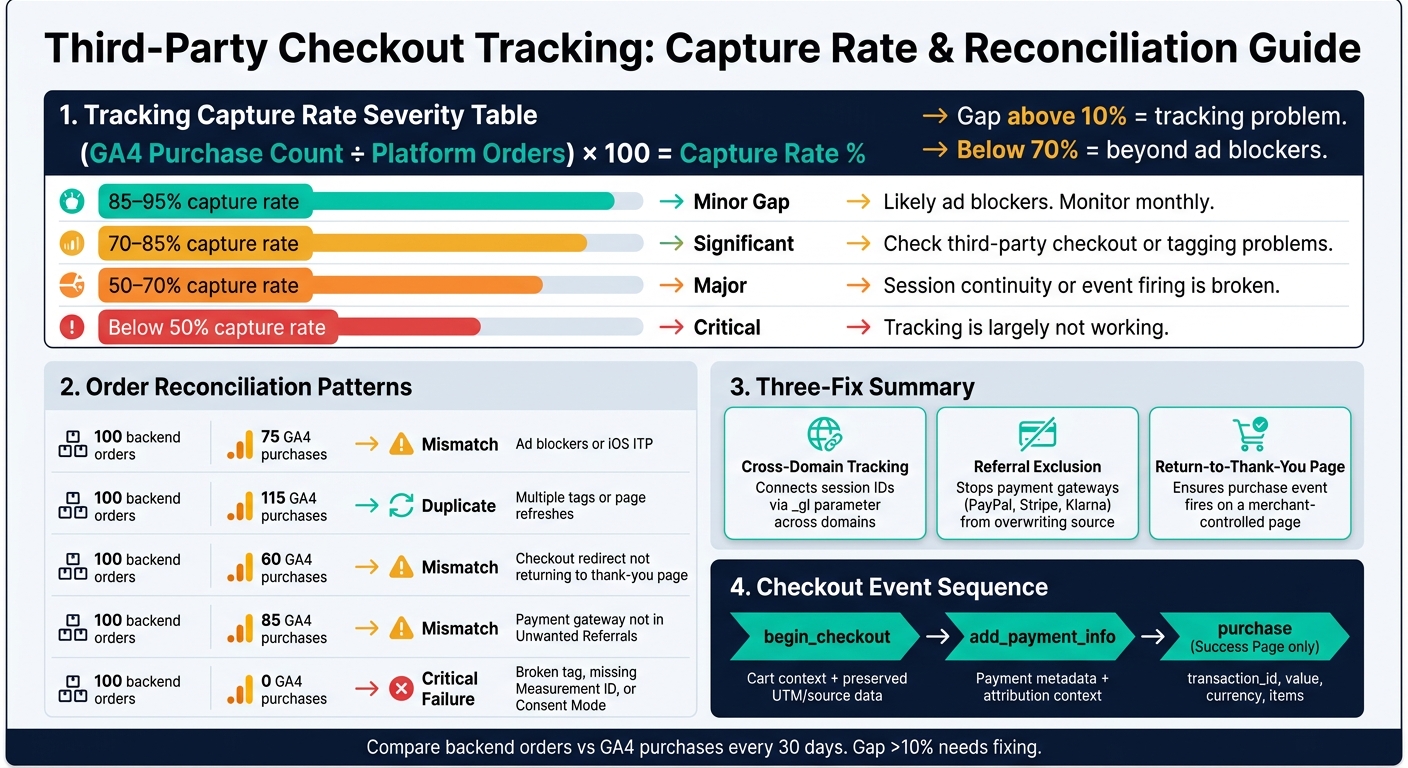
GA4 vs Backend Orders: Tracking Capture Rate Severity Guide
Missing purchases in Google Analytics 4? Here are 11 reasons
sbb-itb-5174ba0
Find the Gap: Compare Orders, Sources, and Checkout Paths
Before you change any settings, make sure there's a gap in the first place and figure out how big it is. Review 30 days of orders, traffic sources, and confirmation-page activity. This is the point where you narrow the problem down: source loss, session loss, or a missing conversion event. Start with the size of the gap, then follow it back to the source, the session, or the purchase event.
Compare Ecommerce Orders to Analytics Purchases
Compare your store's orders and revenue against GA4 purchase events and GA4 revenue for the same 30-day period. In Shopify, that means checking Shopify Admin next to GA4 > Reports > Monetization > Ecommerce purchases. Before you compare the totals, remove draft orders, subscriptions, and POS transactions, since GA4 usually won't record them.
With those numbers cleaned up, calculate your tracking capture rate:
(GA4 purchase count ÷ platform orders) × 100
In many Shopify setups, GA4 records only 70–85% of orders.
| Capture Rate | Severity | What It Means |
|---|---|---|
| 85–95% | Minor gap | Likely ad blockers. Monitor monthly. |
| 70–85% | Significant | Check third-party checkout or tagging problems. |
| 50–70% | Major | Session continuity or event firing is broken. |
| Below 50% | Critical | Tracking is largely not working. |
A low capture rate tells you checkout tracking is dropping data somewhere in the flow. If the gap is big, look next at referrals and direct traffic. Those often hide the original source.
Check for Payment Gateway Referrals and Direct Traffic Spikes
Open GA4 > Reports > Acquisition > Traffic Acquisition and set the primary dimension to Session source/medium. If paypal.com / referral, checkout.stripe.com / referral, or klarna.com / referral shows up near the top of your revenue or conversions report, your campaign data is being credited to the wrong source. That's the source-override issue mentioned earlier.
When someone comes back from a third-party checkout, GA4 can treat that return as a new referral session and replace the original source. You may also notice a jump in (direct) / none conversions. That's another clue that session continuity broke during checkout.
If referral traffic doesn't look like the main problem, move to the thank-you page and confirm the purchase event is firing.
Verify the Thank-You Page and Purchase Event Path
Use GA4 DebugView with the GA4 Debugger extension, then place a test order in incognito mode. Make sure the purchase event fires on the thank-you page. Check transaction_id, value, currency, and items. If transaction_id is missing or value = 0, the event is broken. If the purchase event never shows up at all, the problem is on the return path, not with the acquisition source.
Check the thank-you page URL for the _gl linker parameter too. If it's missing, session continuity broke during checkout. For a bigger-picture view, use Explore > Path exploration in GA4 to see where sessions end. If a large share of sessions stop at the payment step and never reach the thank-you page, you've found the gap behind the missing purchases.
Fix Session and Attribution Loss With Cross-Domain Setup
After you confirm the gap, fix the checkout handoff in this order: session first, attribution second, conversion third. That sequence matters. If the session breaks, attribution gets messy. If attribution gets messy, purchase data becomes a guessing game.
Set Up Cross-Domain Tracking for Store and Checkout Domains
In GA4, go to Admin > Data Streams > [Your Stream] > Configure tag settings > Configure your domains. Then add both your store domain and the third-party checkout domain, such as yourstore.com and checkout.stripe.com. This works when your store and checkout domains can share GA4 linking.
This setup is for hosted checkout, not embedded forms. After you add the domains, check for the _gl parameter in Chrome DevTools and on the return URL. That little parameter does the heavy lifting. It helps GA4 carry session data from one domain to the next.
Once the session stays intact, the next job is to stop payment domains from taking credit for the visit.
Exclude Payment Gateway Domains From Referral Reports
Go to Admin > Data Streams > [Your Stream] > Configure tag settings > List unwanted referrals. Add the gateway domain along with its checkout and auth subdomains. These changes only affect future traffic.
This step keeps gateway domains from overwriting the original source. So instead of GA4 saying a sale came from paypal.com or a checkout subdomain, it can keep the earlier source tied to the visit.
After that, make sure the purchase event still has a place to fire.
Return to a Taggable Thank-You Page
The purchase event fires only on your thank-you page. Point the return URL to a merchant-controlled thank-you page where the purchase tag can run.
If the return URL sends users to a page that drops query parameters, two things can go wrong at once: the session won’t stitch, and the event won’t fire. That’s a nasty one-two punch.
Each fix handles a different failure point:
| Fix | Primary Purpose | Advantage | Limit | When Required |
|---|---|---|---|---|
| Cross-Domain Tracking | Connects session IDs across domains via _gl parameter |
Maintains original source/medium and user history | Breaks if redirects strip _gl. |
When checkout lives on a different domain (e.g., Stripe Hosted) |
| Referral Exclusion | Prevents a payment gateway from starting a new session on return | Stops attribution from being overwritten by gateway domains | Does not fix missing events; only cleans up attribution noise | For all third-party gateways (PayPal, Klarna, Stripe, etc.) |
| Return-to-Thank-You Page | Provides the trigger point for the purchase event to fire |
Ensures the conversion is actually recorded in GA4 | Fails if the user closes the tab before the redirect completes | Always required for client-side tracking setups |
Preserve Source Data With UTMs, Event Tagging, and Order IDs
Store Original UTMs Before Checkout Starts
Once you've fixed the checkout handoff, the next job is simple: keep the original source data from getting wiped out during the redirect.
A common problem is that the checkout or payment domain overwrites the first-touch UTMs before the order is complete. When that happens, the thank-you page can no longer tie the sale back to the right source. To avoid that, capture the current UTMs and client ID before checkout starts, then store them in sessionStorage or localStorage.
A clean setup in GTM looks like this:
- Use a Custom HTML tag to grab the current UTMs and client ID the moment the user clicks the checkout button
- Store those values locally in the browser
- On the thank-you page, use a second script to pull the stored values back out
- Push them into the
dataLayerwith thepurchaseevent
That keeps source, session, and conversion context in place even after a redirect.
You should also set cookies to SameSite=None; Secure in your GA4 tag so cross-domain tracking can survive browser restrictions.
Standardize Checkout and Purchase Event Tagging
Preserving source data is only half the battle. You also need to use that same data across each checkout event. If event names or payloads change from one step to the next, attribution starts to fall apart.
Use this three-step sequence:
| Event | When to Fire | Required Fields |
|---|---|---|
begin_checkout |
User enters checkout flow | Cart context, preserved UTM/source data |
add_payment_info |
Payment details submitted | Payment step metadata, attribution context |
purchase |
Success page | transaction_id, value, currency, items |
The UTMs and source data captured in the first step should carry through begin_checkout, add_payment_info, and purchase. That way, attribution stays consistent from entry to sale.
A few things matter here. Fire purchase only on the success page. If it fires earlier, your numbers can drift fast. Also use localStorage to block repeat tracking for the same transaction_id. GA4 can deduplicate matching purchases within 24 hours, but only if the client ID stays the same.
Match Order IDs to Tracked Transactions
Once event tagging is stable, make sure your orders and tracked purchases can actually line up.
The easiest way to break reconciliation is to use different order ID formats in different places. Pick one format and stick with it everywhere - either the Shopify order name (#1234) or the numeric ID. If one system sends #1234 and another sends 1234, the join key breaks and your reporting gets messy.
It's worth running a regular comparison between your ecommerce backend order count and GA4 purchase events. A gap under 5% is usually acceptable. Anything above 10% points to a tracking issue that isn't going away on its own.
Here are the patterns you’ll usually see:
| Backend Orders | GA4 Purchases | Reconciliation Status | Likely Cause |
|---|---|---|---|
| 100 | 75 | Mismatch | Ad blockers or iOS privacy restrictions (ITP) |
| 100 | 115 | Duplicate | Multiple tags firing or page refreshes without deduplication |
| 100 | 60 | Mismatch | Third-party checkout redirecting without returning to thank-you page |
| 100 | 85 | Mismatch | Payment gateway not added to "Unwanted Referrals" (attribution loss) |
| 100 | 0 | Critical Failure | Broken tag, missing Measurement ID, or Consent Mode blocking all events |
If you want a hands-off way to monitor this, a Looker Studio dashboard can do the job well. Pull platform order counts through the API, compare them against daily GA4 purchase events, and you'll spot gaps before they turn into reporting headaches.
Conclusion: Build a Reliable Checkout Tracking Recovery Plan
When a third-party checkout breaks tracking, the pattern is usually pretty clear: the session gets cut off at the domain handoff, the first traffic source is replaced, and the purchase event ends up firing on the wrong page - or not at all.
Start by checking your capture rate with (GA4 purchases / backend orders) × 100. That gives you a plain way to confirm the gap is real. After a fix goes live, look for movement in the data 24 to 48 hours later.
From there, staying accurate comes down to consistency. Keep your UTMs, event names, and transaction_id values aligned, and compare backend orders against GA4 purchases on a regular basis. If the gap stays above 10%, you're likely dealing with a tracking problem that won't fix itself.
FAQs
Why is GA4 missing some of my orders?
GA4 often misses orders because it relies on client-side JavaScript. And that JavaScript doesn’t always run when it should.
A few things can go wrong. If a customer leaves your site and moves to a third-party checkout, tracking can break along the way. The session may reset. Tags may not fire on the confirmation page. And privacy tools or consent banners can block the final purchase event.
That’s the core issue: the order happened, but GA4 may never record it.
How do I know if checkout redirects are breaking attribution?
Check your GA4 traffic reports and your browser’s network activity. If the session source shows payment processors instead of the marketing channels that brought people in, the redirect is probably overwriting attribution.
To verify it, open browser DevTools, turn on Preserve log in the Network tab, and run a test purchase. If the thank-you page URL is missing the _gl parameter, the redirect likely stripped cross-domain tracking and reset the session.
What should I check first if purchase events are not firing?
First, place a controlled test order in an incognito window and watch what happens in GA4 DebugView or Google Tag Assistant. Before you zero in on purchase, make sure page_view, view_item, add_to_cart, and begin_checkout are all firing the way they should.
If purchase is still missing, check the Thank You page tracking code, Checkout Extensibility compliance, cookie consent settings, and any JavaScript errors in the browser console.